
Users activities
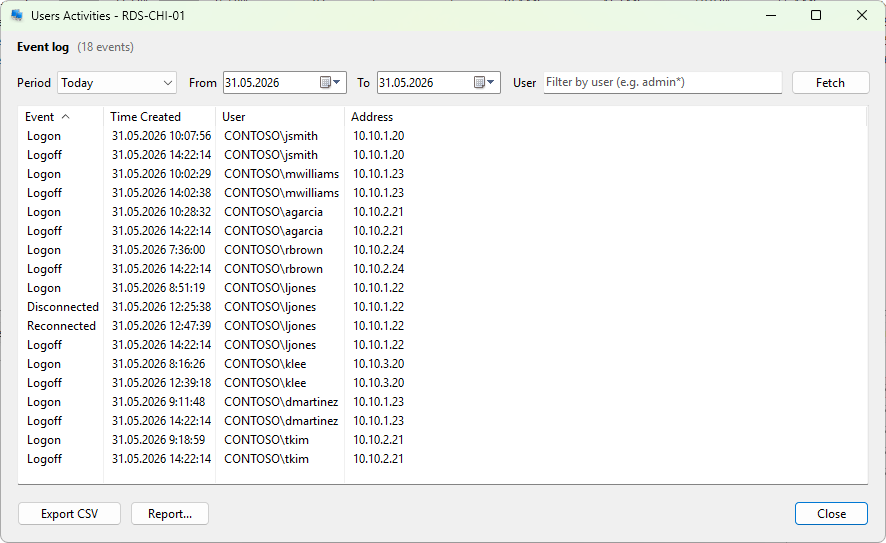
The Users Activities dialog lists every Terminal Services session event recorded on a server. It names the common events - logon, logoff, disconnect, and reconnect - and shows any other event type by its numeric event ID. It is the chronological view of session activity, in contrast to Session history which folds events into one row per session.
How to open it
- Right-click a server on the Servers tab and choose Administration > Users activities.
- Right-click a user on the User sessions tab and choose User activity to see only that user's events.
Time range
The same toolbar as the other event viewers: a Period dropdown of presets and two date pickers, then Fetch to reload. Opens with Today by default.
Columns
- Event - the event description, derived from the Terminal Services event ID. Recognized values: Logon, Logoff, Disconnected, Reconnected. Unknown IDs are shown as their numeric value.
- Time Created - when the event was recorded.
- User - the account associated with the event.
- Address - the client IP, when the event records one.
The events come from the Microsoft-Windows-TerminalServices-LocalSessionManager/Operational log.
Filter
A User field with wildcard support narrows the list to one account. Press Enter to apply.
Export
The same two buttons as the other event viewers: Export CSV writes the visible rows as comma-separated text, and Report... writes an HTML report with summary analytics (logon / logoff / disconnect / reconnect counts, unique users).
When to use which viewer
- Session history when you want to know how long sessions lasted, how often a user disconnected, and the active vs. disconnected time per session.
- Failed logons when you are investigating brute-force or account-lockout activity.
- Users activities when you need the raw event chronology, including events that do not pair into sessions (orphan disconnects, server-side logoffs, session resets).