
Built-in presets
The program ships with a set of presets for each list. They are loaded on first run and come back when you choose Restore defaults in the presets menu (see Saved presets). Presets marked button appear as buttons on the filter bar; the others live only in the presets menu.
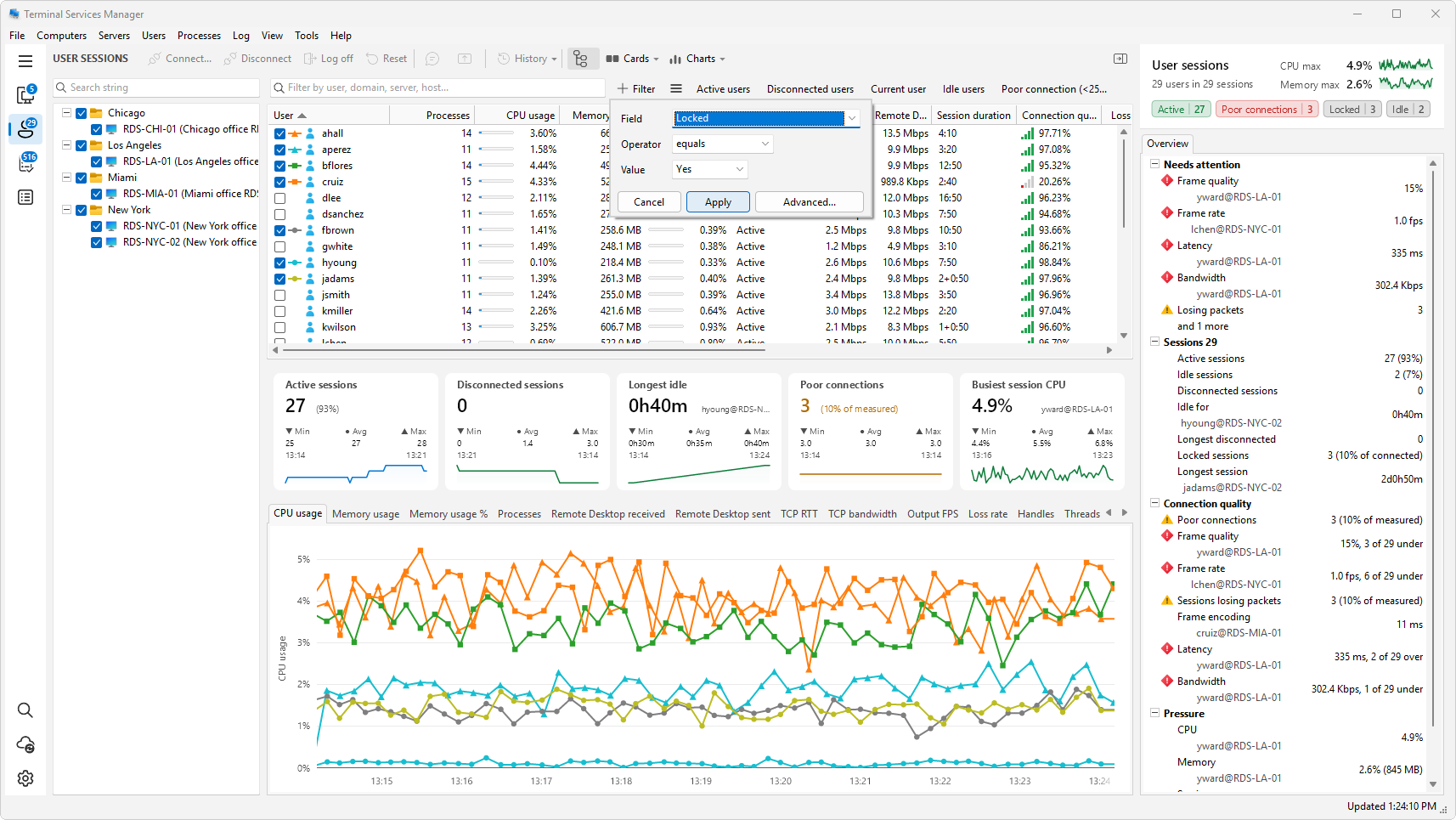
Applying a preset adds its conditions to the filter under All match. The two presets whose condition below says OR, Overloaded (>90%) and Network trouble, replace the current conditions and switch the filter to Any match, so they work as listed.
Server presets
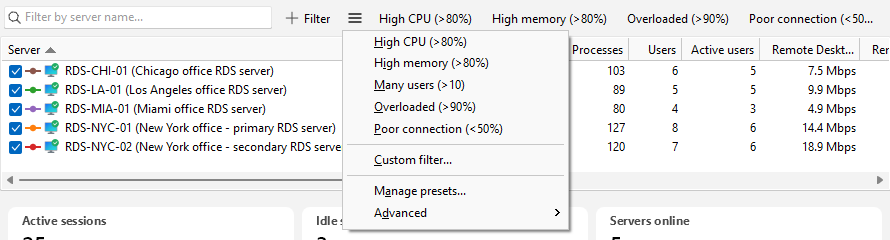
| Preset | Condition | Where |
|---|---|---|
| High CPU (>80%) | CPU usage > 80 |
button |
| High memory (>80%) | Memory % > 80 |
button |
| Many users (>10) | Users > 10 |
menu |
| Overloaded (>90%) | CPU usage > 90 OR Memory % > 90 |
button |
| Poor connection (<50%) | Connection quality < 50 |
button |
User session presets
| Preset | Condition | Where |
|---|---|---|
| Active users | State contains Active |
button |
| Disconnected users | State contains Disconnected |
button |
| Current user | User name contains <your account> |
button |
| High CPU (>50%) | CPU usage > 50 |
menu |
| High memory (>100 MB) | Memory usage > 100 MB |
menu |
| Idle users | Idle time > 5 minutes |
button |
| Poor connection (<25%) | Connection quality < 25 |
button |
| Degraded connection (<50%) | Connection quality < 50 |
menu |
| Packet loss (>1%) | Loss rate > 1 |
menu |
| Network trouble | Loss rate > 1 OR Retransmission rate > 5 |
menu |
| Locked sessions | Locked equals Yes |
button |
| Not locked | Locked equals No |
menu |
Locked sessions and Not locked use the Locked field, which is also a column of the User sessions list.
Process presets
| Preset | Condition | Where |
|---|---|---|
| High CPU (>50%) | CPU usage > 50 |
button |
| High memory (>100 MB) | Working set > 100 MB |
button |
| User processes | Session ID > 0 |
button |
| System processes | Session ID = 0 |
button |
| Many handles (>1000) | Handles > 1000 |
menu |
| Many threads (>50) | Threads > 50 |
menu |
| Current user | User name contains <your account> |
button |
| High memory (>500 MB) | Working set > 500 MB |
menu |
| Active processes | CPU usage > 0 |
menu |
Current user
The Current user presets, on the Processes and User sessions lists, are saved with a placeholder for the Windows user name. The program looks it up when it loads the presets, so a different Windows account gets its own name.
Changing built-in presets
You can edit a built-in preset like any other saved preset, and your edit stays. Restore defaults with Keep custom presets leaves an edited built-in as it is; Remove all replaces it with the shipped version and deletes every custom preset of the list. To keep both, copy the conditions into a new preset under another name and edit the copy.