
Importing and exporting the computer list
Terminal Services Manager keeps the computer list in its own settings. Use the import and export commands to save a copy as a file, share it with a colleague, or carry it between machines.
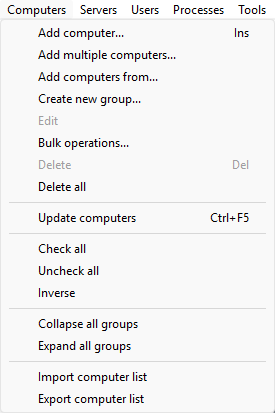
Exporting
Choose Computers > Export computer list from the main menu (it is the last item on the Computers menu). A standard save-file dialog opens with a default name of the form computer_list_<timestamp>. Pick the format from the Save as type dropdown:
- JSON (
.json) - the default. Diffs cleanly in version control. - XML (
.xml) - useful when another tool you work with expects XML. - Text (
.txt) - one entry per line, name and description separated by|(the default delimiter). Easiest format to edit by hand or generate from a script. Lines starting with#or//are treated as comments on import. - RHF (
.rhf) - an XML-based "Radmin Host File" format, kept for compatibility and deprecated.
Every export includes the full state of the list: computer names, descriptions, notes, the folder hierarchy, expand and check state, and the favorite flag. The file also records its schema version so future versions of the program know how to read it.
Importing
Choose Computers > Import computer list from the main menu. An open-file dialog appears that recognizes all four formats above; the format is picked from the file extension.
After you select a file, a task dialog asks how to merge it with the list that is already loaded:
- Add new computers only - keep the current list; only computers that don't already exist are added. This is the default and the safest option.
- Replace entire list - clear the current list, then load the file.
- Import all (allow duplicates) - add everything from the file even if some computers already exist.
If you change your mind after Replace entire list, exit Terminal Services Manager without confirming any further changes - the loaded list is only persisted to disk when you exit normally.
Importing does not connect to any computer or test any credentials. Names go straight into the list as you provide them.