
Exporting server data
There are two ways to get server data out of Terminal Services Manager: copy it to the clipboard, or save it as a CSV file.
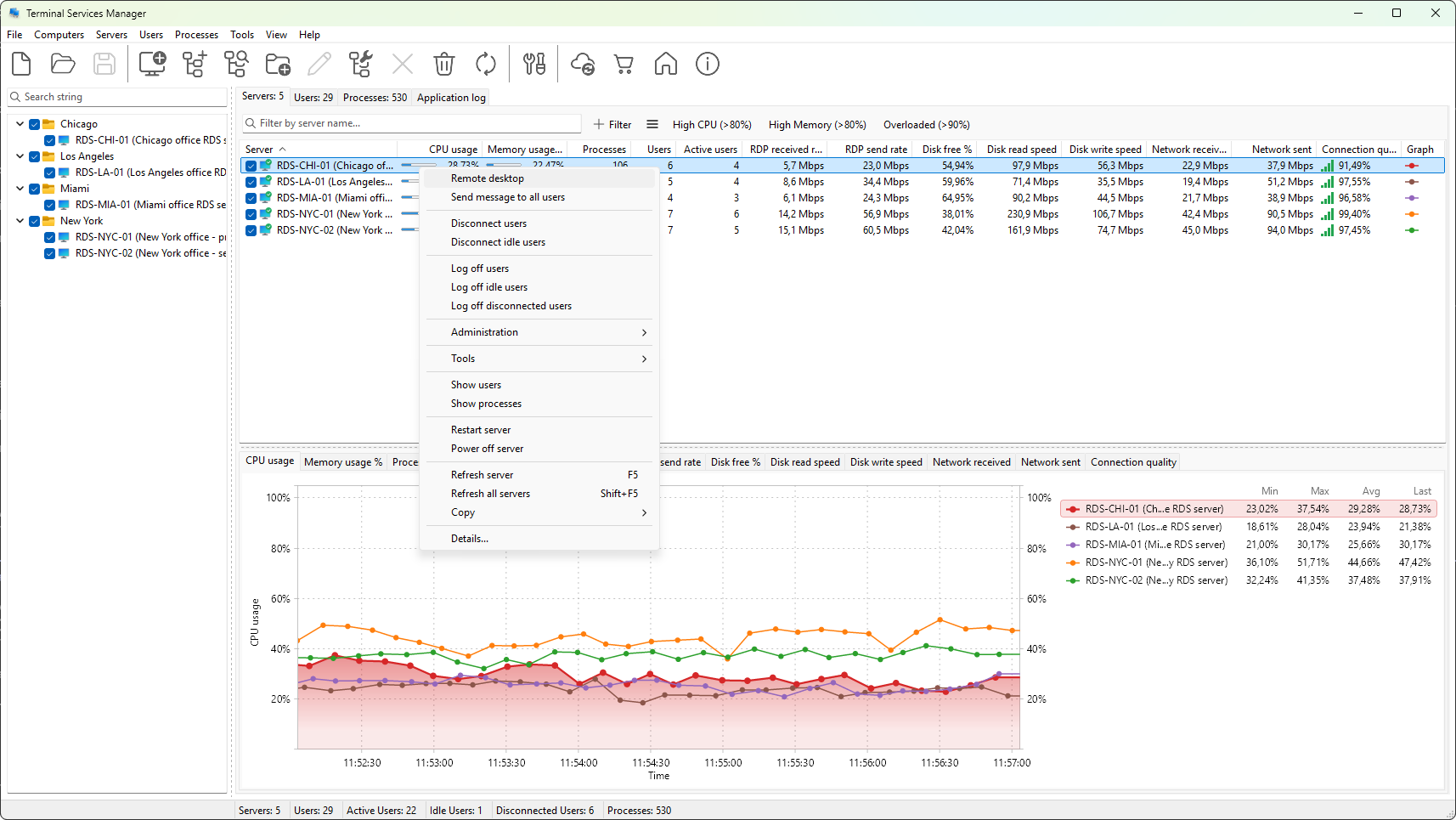
Copying to the clipboard
The Copy submenu of the Servers context menu has three commands:
- Copy row - the focused row, all visible columns, as tab-separated text. Paste it into a spreadsheet or a message.
- Copy cell - just the cell under the mouse pointer. Useful for quoting a specific number.
- Copy all rows - every visible row, all visible columns, including a header row. The data goes to the clipboard as tab-separated text.
Hidden columns are not included. Sort order in the clipboard matches what you see on screen.
Exporting to a CSV file
Choose Servers > Export servers to CSV from the main menu. A save-file dialog opens with a default name of the form servers-YYYY-MM-DD-HH-MM-SS.csv.
The export contains:
- One row per visible server.
- One column per visible column on the Servers tab, in the current order.
- A header row with the column titles.
CSV is the only export format. The file opens directly in Excel and any text editor. On locales where the comma is the decimal separator, configure Excel's import to treat commas as field separators and dots as the decimal mark, or open the file through Data > From Text/CSV instead of double-clicking.
What gets exported
The exported data is a snapshot of the screen at the moment you press Export: the same columns, the same sort order, the same visible rows. Hidden columns are not in the file; checkbox state is not in the file. If you need a different shape (for example, just the slow servers), sort and filter the view first, then export.
The exported file is a one-time snapshot. For continuous monitoring, point a script at the same WMI counters and PDH paths directly.