
Opening Preferences
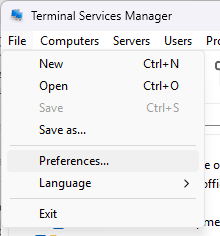
Choose File > Preferences... from the main menu, or click the wrench button on the toolbar.
Layout
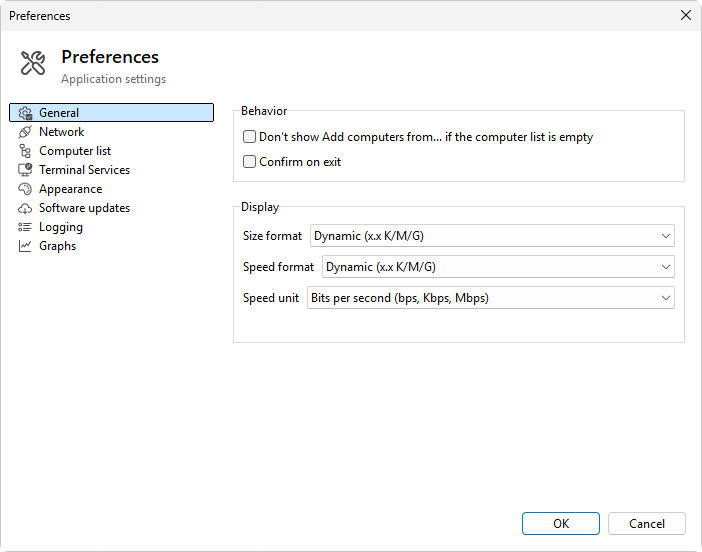
- Navigation tree on the left, one entry per page.
- Header banner at the top of the content area shows the selected page's title and a one-line description.
- Content area with the page's controls. Three pages have inner tabs: Terminal Services (General / Graphs), Appearance (Theme / Data display), and Graphs (Chart / Behavior).
- OK and Cancel buttons at the bottom.
Pages
In order:
- General - startup, exit, and display formats. See Behavior.
- Network - how the program checks whether a server is reachable. See Server state verification.
- Computer list - how the left-hand computer list is displayed. See Computer list display.
- Terminal Services - server refresh interval, timeouts, RDP options, graph data collection. See Server settings.
- Appearance - theme and percentage-bar rendering. See Appearance.
- Software updates - update mode and check frequency. See Software updates.
- Logging - log levels and the on-disk log file. See Logging.
- Graphs - graph defaults across the program. See Graph options.
OK and Cancel
- OK saves every change and closes the dialog.
- Cancel discards every change made in the dialog session.
Validation errors block OK; the page with the bad value stays focused and an error message tells you what's wrong.
When changes take effect
Most preferences apply immediately when you click OK: a new refresh interval is used on the next scheduler tick, a new theme repaints the program. A few file-logging changes (path, format) take effect when the next log file is opened.
Was this page helpful?
Thanks for your feedback.