
Rebooting and shutting down
Terminal Services Manager can restart or power off a monitored server. Both actions ask for a simple confirmation first, then run against every selected server.
How to do it
Select one or more servers on the Servers tab, then:
- Right-click and choose Restart server or Power off server, or
- Choose Servers > Restart server or Servers > Power off server from the main menu.
A confirmation dialog appears for the action you picked.
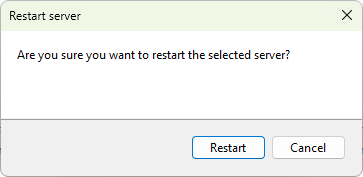
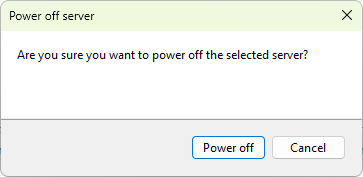
Click Restart or Power off to go ahead, or Cancel to abort. When more than one server is selected, the prompt says how many. The request is then queued and carried out on each server; watch the Application log for the result.
Warn users first
There is no message field on these prompts. If you want to warn users before the action, send a message first with Sending a message or a message preset.
To log a user off rather than restart the whole server, use the per-session Log off action on the User sessions tab instead.
Common reasons it fails
- The account running the program lacks the Shut down the system privilege on the target. Adjust the user's permissions, or run the program under an account that has it.
- The server is unreachable, or is already powering off or restarting from an earlier request.