
Organizing computers into groups
Groups are folders inside the computer list. They have no effect on monitoring; they exist to keep large lists navigable.
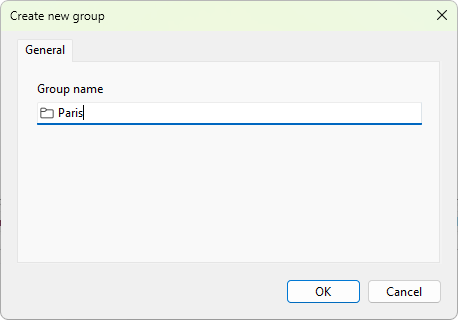
Creating a group
Choose Computers > Create new group... from the main menu, or right-click the computer list and pick Create new group.... The Create new group dialog opens.
- Group name - the folder name. The same character restrictions that apply to computer names apply here.
Click OK to create the group.
Editing a group
Right-click the group and pick Edit, or select it and press the Edit toolbar button. The same dialog opens with the title changed to Edit group and the current settings filled in.
Moving entries into a group
Drag any computer or group node and drop it onto a group in the tree. Drop onto empty space to move items to the root level. Multi-selecting before you drag moves every selected item in one operation.
Removing a group
Right-click the group and pick Delete (or press Del with the group selected). Deleting a group also deletes everything inside it, including all child groups, so the program asks you to confirm. Use Bulk operations > Remove empty groups to clean up folders that have lost all of their children.