
Sending a message
Send message displays a Windows message box on the user's session. Use it to warn users before a reboot, ask them to log off, or tell them about a problem you are about to fix.
How to do it
Select one or more sessions on the User sessions tab, then:
- Right-click and choose Send message, or
- Choose Users > Send message from the main menu.
You can also send a message to every user on a whole server: right-click the server on the Servers tab and choose Send message to all users.
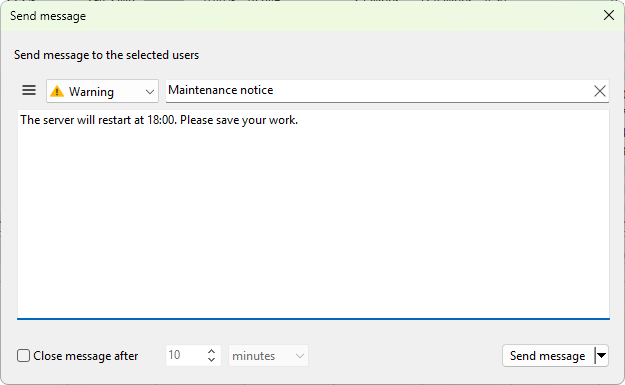
The Send message dialog opens.
Fields
- The title field at the top sets the message-box title. It shows Message title as a hint until you type.
- The large field below holds the message text shown in the box. It is multi-line.
- Message type - the icon shown in the message box: None, Info, Warning, or Error. Each comes with its own system sound.
- Close message after - tick this box, then enter a number and pick a unit (seconds, minutes, hours). The message box closes on its own after that time if the user does not dismiss it. With the box unticked, the message stays until the user clicks OK.
The recipient line at the top of the dialog says exactly who the message will go to: a specific session, every session on a server, every session on a list of servers, and so on.
Variable substitution
The title and body support placeholders. They are replaced just before the message is sent. Five tokens are recognized:
%computer_name%- the local computer name of the machine running Terminal Services Manager.%user_name%- the user name of the operator running Terminal Services Manager.%date%- the current date.%time%- the current time.%time_now%- the current date and time as a single string.
Variable names are case-insensitive. Per-recipient tokens (recipient user, server, session ID, client name) are not supported; the message text is the same for every recipient on a multi-target send.
Sending
Click Send message to send. The dialog blocks until every send has finished. The recipient sees the message immediately. Their OK click is not reported back to Terminal Services Manager; if you need a reply, ask the user to contact you separately.
The arrow next to the Send message button offers extra actions:
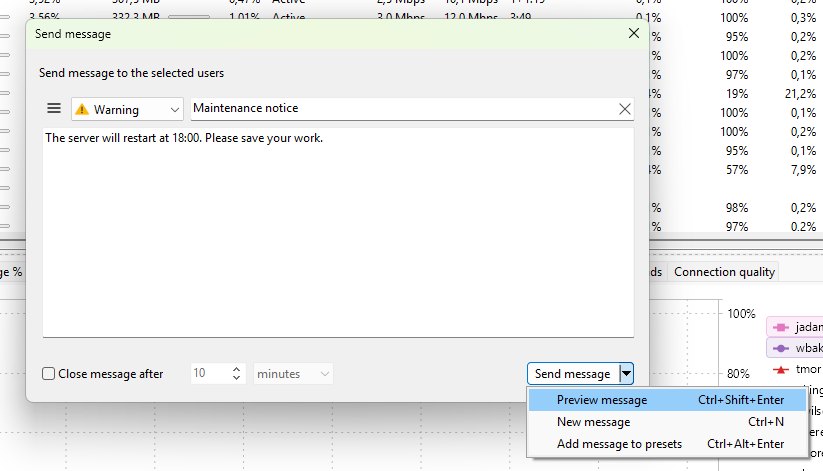
- Preview message (
Ctrl+Shift+Enter) - show the message box on your own screen to check the wording before sending. - New message (
Ctrl+N) - clear the form to start a fresh message. - Add message to presets (
Ctrl+Alt+Enter) - save the current title, body, and type as a preset for one-click reuse.
See also
- Message presets - save common messages for one-click reuse