
Searching the computer list
The search field above the computer list is the fastest way to find an entry in a long list. As you type, every entry whose displayed text does not contain what you typed is hidden.
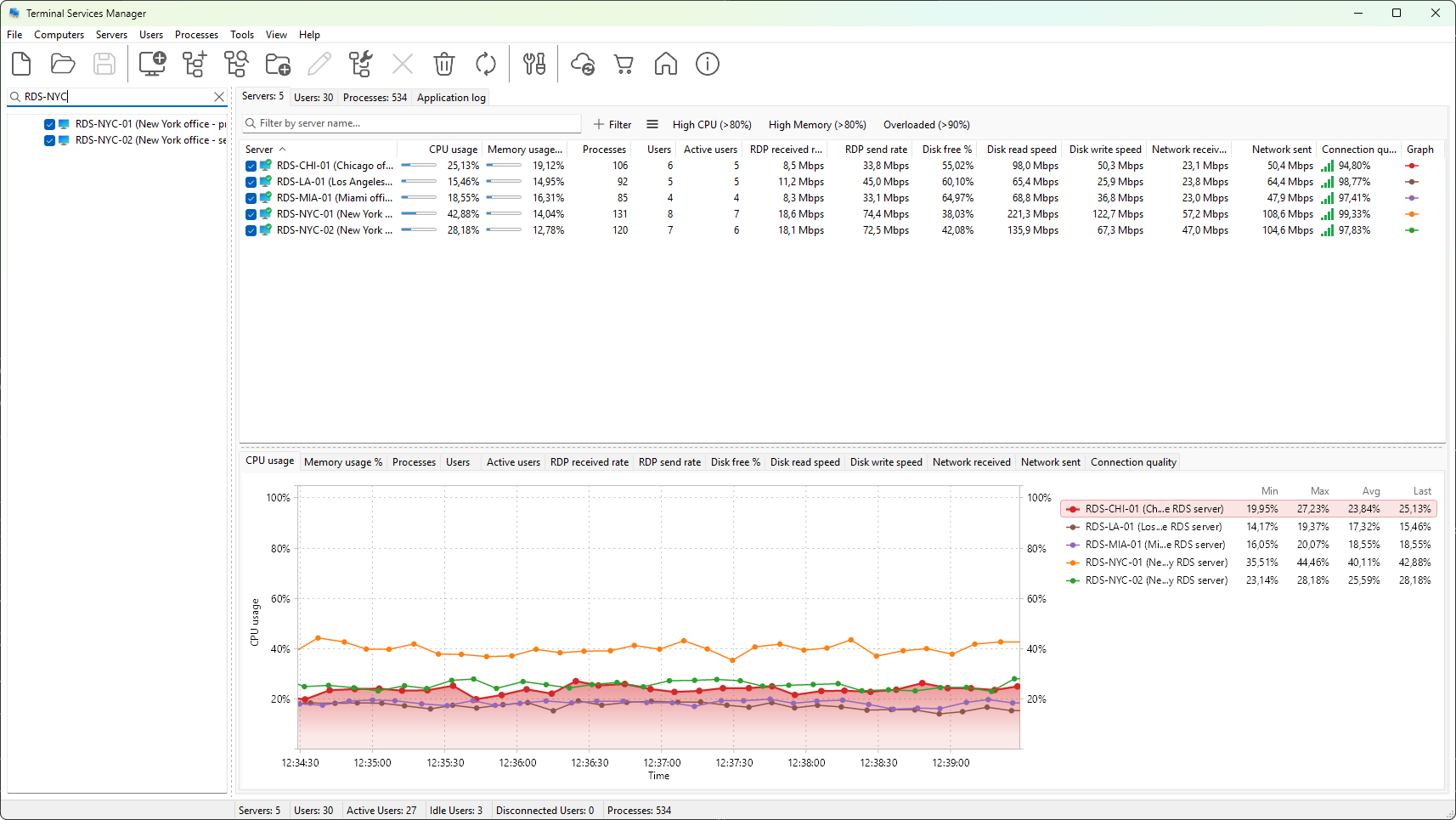
Where it is
The search field sits above the computer list pane on the left side of the main window, marked with a magnifying-glass icon and the hint text Search string.
How matching works
- The match is a case-insensitive substring search against each item's displayed caption.
- The caption is built from the computer's name and description according to the Show computer caption as style set in Preferences (default Computer name (Description)). With the default style, the search therefore matches text from both fields. Switch to Computer name in Preferences if you want a strict name search.
- Notes (the tooltip text shown on hover) and IP address columns are not part of the caption, so they are not searched.
- Groups are filtered by the same rule as computers: a group whose own name does not contain the search text is hidden, which also hides its children. To find entries inside a folder by name, type a substring of the entry name and the matching entries become visible at their position; type the folder name to keep the folder visible regardless of its content.
Clearing the search
A clear button (the small x icon) sits at the right edge of the field. Click it, or select all the text and press Delete, to clear the search. The list reverts to showing every entry.
Tips
- The search affects only the computer list pane. The Servers, User sessions, and Processes tabs have their own filters.
- Combine search with checkboxes to act on a subset: type to narrow the list, tick the entries you want, then clear the search before invoking an action like bulk operations.
Was this page helpful?
Thanks for your feedback.