
Installing Terminal Services Manager
The easiest way to install on a modern Windows machine is through winget; see Installing with winget. The sections below cover the interactive installer and the underlying command-line switches you can use when winget is not available.
Download
Get the latest installer, tsmanager_setup.exe, from the LizardSystems download page.
Install interactively
-
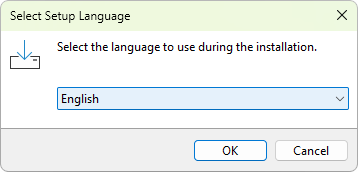
Run the installer. If User Account Control prompts, confirm to allow it to make changes, then choose the language to use during setup.
-
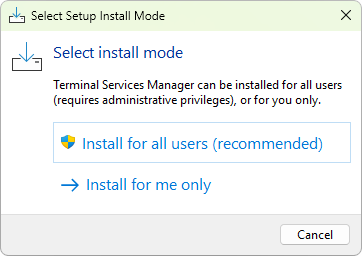
On Select install mode, choose Install for all users (recommended; needs administrative rights) or Install for me only.
-
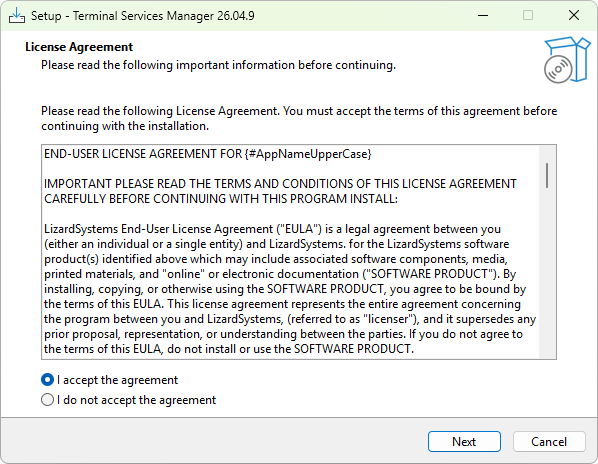
Read the license agreement, choose I accept the agreement, and click Next.
-
Choose the installation folder. The default is
C:\Program Files\LizardSystems\Terminal Services Manager.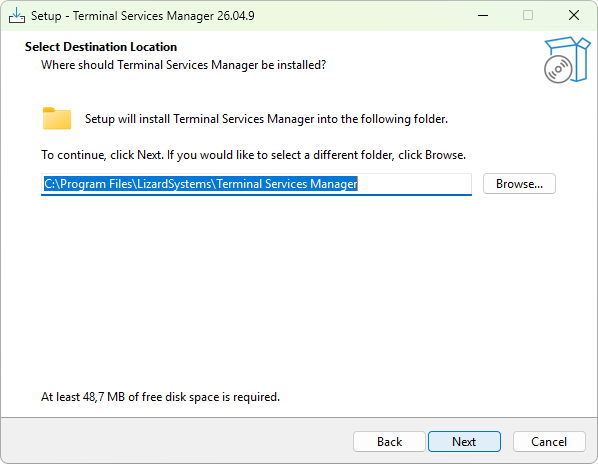
-
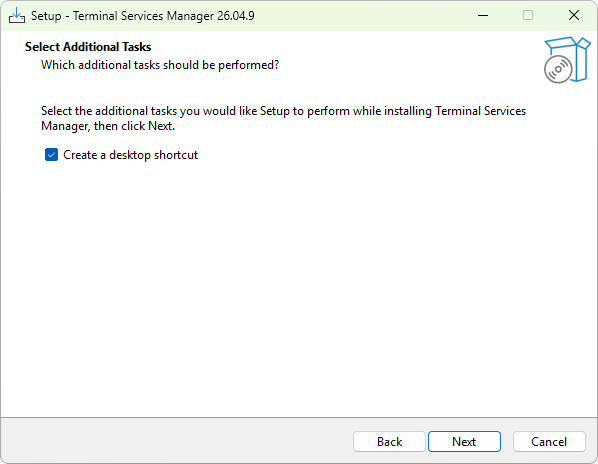
Pick the additional tasks, such as Create a desktop shortcut, and click Next.
-
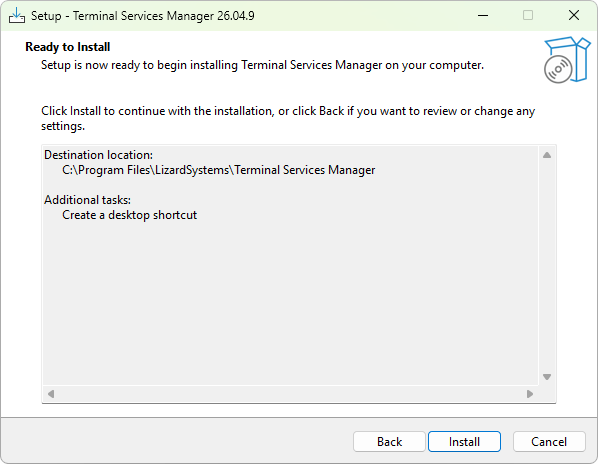
Review the summary on the Ready to Install page and click Install.
-
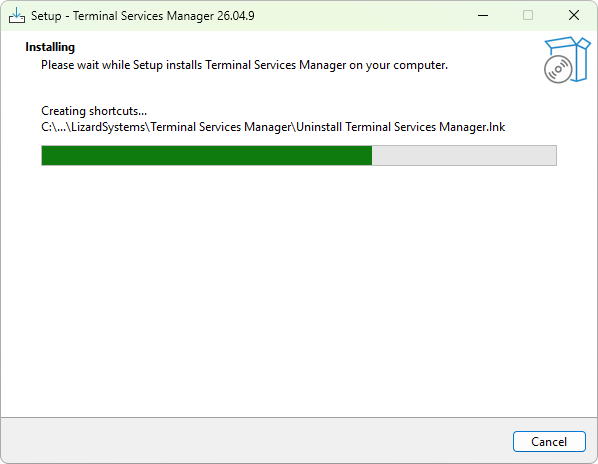
Wait while the files are copied.
-
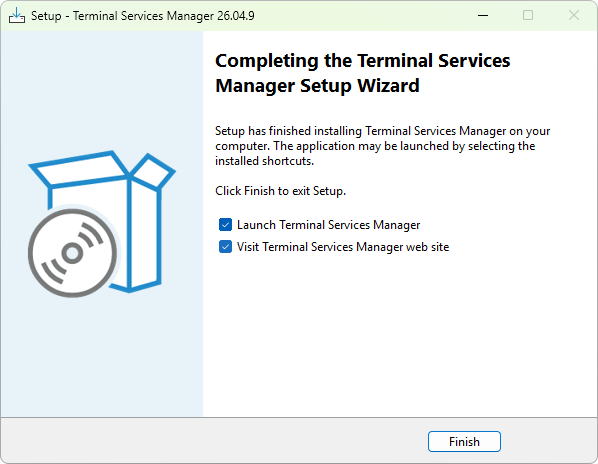
On the final page, leave Launch Terminal Services Manager ticked (and, if you like, Visit Terminal Services Manager web site), then click Finish.
Silent install without winget
The installer is built with Inno Setup. The following switches are recognized:
| Switch | Effect |
|---|---|
/VERYSILENT |
No installer UI. |
/SILENT |
Show only the progress window. |
/SUPPRESSMSGBOXES |
Combined with /VERYSILENT or /SILENT, dismisses confirmation dialogs. |
/NORESTART |
Suppress the automatic reboot prompt if one is needed. |
/SP- |
Skip the initial "This will install..." prompt. |
/DIR="<path>" |
Override the installation folder. |
/LOG="<file>" |
Write an installation log to <file>. |
Example (matches the switches winget itself passes):
tsmanager_setup.exe /VERYSILENT /SUPPRESSMSGBOXES /NORESTART /SP-
Uninstall
Open Settings > Apps > Installed apps, find Terminal Services Manager, and choose Uninstall. The uninstaller removes the program files, registry keys, and Start menu shortcuts. Application settings and the saved computer list under %APPDATA%\LizardSystems\Terminal Services Manager are kept by default so they can be reused after a reinstall; delete that folder manually for a clean removal.
If you installed through winget, use winget uninstall tsmanager instead.
Updating from inside the program
When a new version is available, the program offers to download and install it the next time it is started. You can also check for updates at any time from Help > Check for updates....