
Server context menu
Right-clicking a row on the Servers tab opens the server context menu. Every command operates on the selected servers (which may be more than one if you held Ctrl or Shift while clicking).
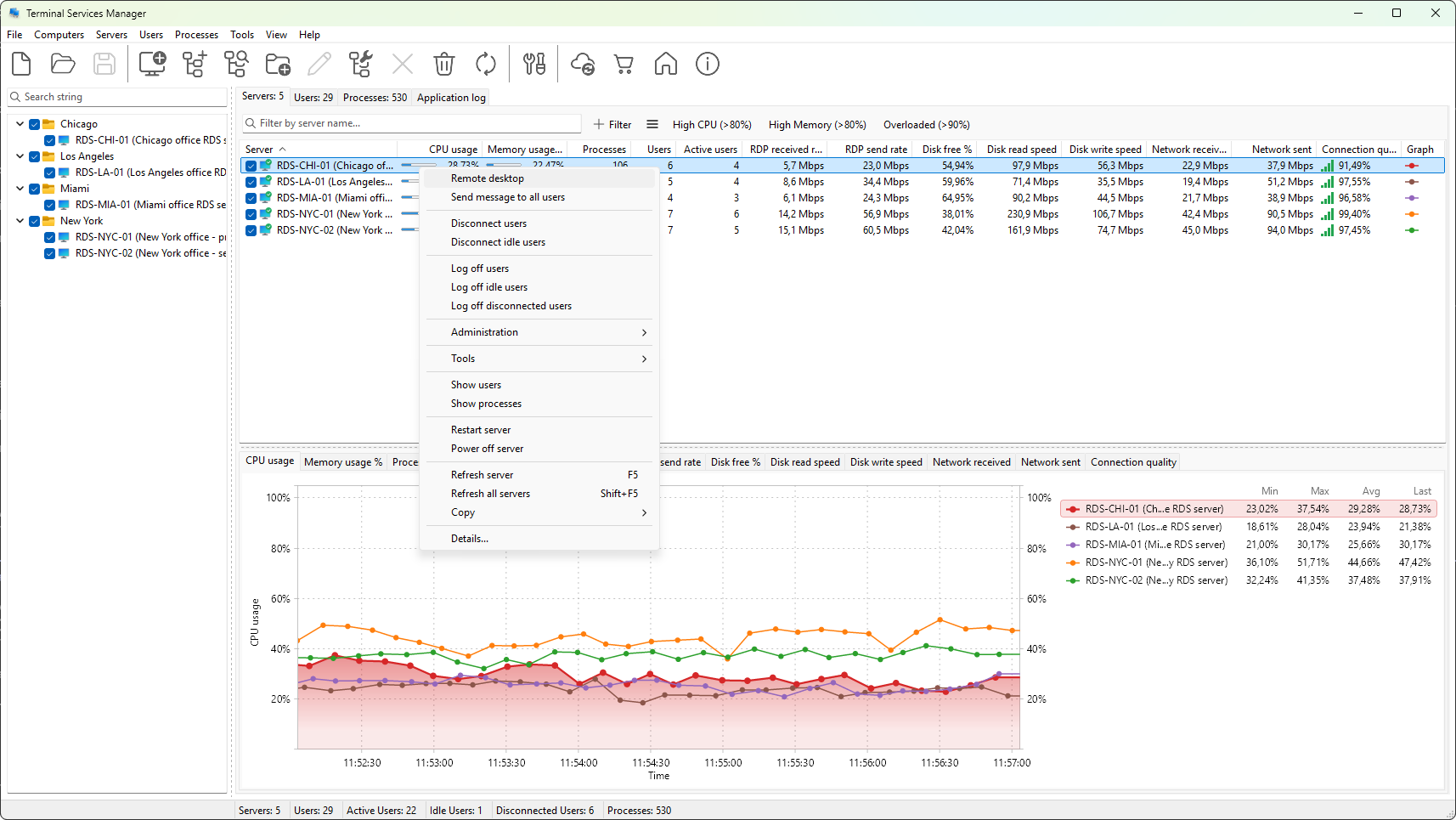
Connection
- Remote desktop - open a Remote Desktop session to the server using the standard Windows client.
- Send message to all users - opens the send message dialog, which broadcasts the message to every user logged on to the selected servers.
Session actions on every user
- Disconnect users - drop the connection of every user on the server. Their session stays on the server in the disconnected state; they can reconnect to it later.
- Disconnect idle users - same as above, but only for users whose session has been idle longer than the configured threshold.
- Log off users - end every user's session and discard it. Unsaved work is lost.
- Log off idle users - log off only the users whose session has been idle longer than the threshold.
- Log off disconnected users - log off only the users whose session is currently disconnected.
Each of these asks for confirmation before it runs.
Administration submenu
- Users activities - opens the Users activities viewer for the selected server.
- Failed logons - opens the failed logons viewer.
- Session history - opens the session history viewer.
- User profiles - opens the user profiles manager.
- Remote Desktop Services properties... - opens the RDS properties editor.
- Remote Desktop Services licenses... - opens the RDS licensing dialog.
- Configure Remote Desktop... - opens the enable/disable Remote Desktop dialog.
Tools submenu
The Tools submenu lists custom command-line tools you have registered (see Custom command-line tools). The submenu is empty until you add at least one tool.
Drill-down
- Show users - switches to the User sessions tab and shows only the users on the selected servers.
- Show processes - switches to the Processes tab the same way.
Power
- Restart server - restart the selected servers. Opens a simple confirmation dialog (see Rebooting and shutting down).
- Power off server - shut down the selected servers. Same confirmation flow.
Refresh
- Refresh server - refresh just the selected servers.
- Refresh all servers - refresh every entry in the computer list.
Copy
The Copy submenu has three commands, all of which write to the clipboard as tab-separated text:
- Copy row - the focused row, all visible columns.
- Copy cell - just the cell under the mouse pointer.
- Copy all rows - every visible row, with a header row at the top.
Details
- Details... - the last item on the menu. Opens the Entity details dialog for the focused server, showing every metric with minimum, average, and maximum values and a chart. Double-clicking a server row does the same.
Was this page helpful?
Thanks for your feedback.