
Server settings
The Terminal Services page is split into two tabs. The first controls how often servers are polled and how the program connects; the second controls how much graph data is kept.
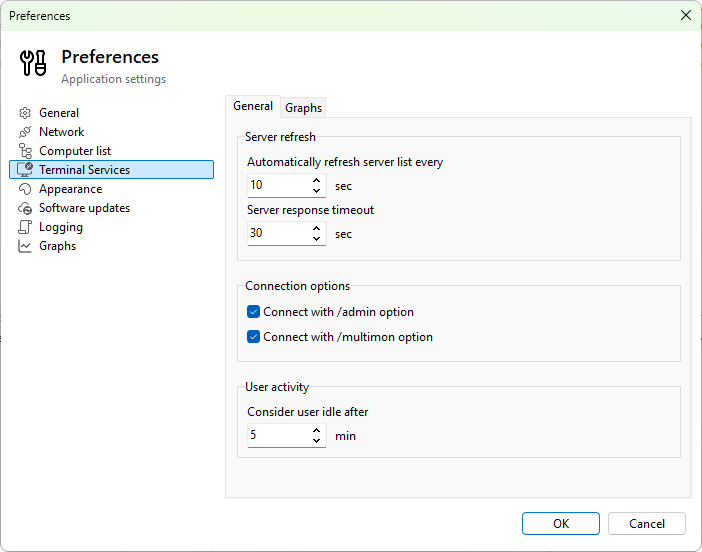
General tab
- Automatically refresh server list every - seconds between scheduler ticks. The minimum is 1 second; the recommended floor is 3-5 seconds on most environments. Default is 10 seconds. See Refreshing server data for the full picture.
- Server response timeout - how long the program waits for one server to respond before giving up. Range 10 to 300 seconds, default 30 seconds. A slow server that exceeds the timeout shows an error in the status icon and is retried on the next refresh tick.
- Connect with /admin option - when ticked, the Remote Desktop action launches
mstsc.exe /admin, which connects to the console (session 0 admin) instead of creating a new user session. Used to reach the physical console of a server. - Connect with /multimon option - when ticked, Remote Desktop launches
mstsc.exe /multimon, which spans the RDP window across every monitor you have. Has no effect with a single-monitor setup. - Consider user idle after - minutes of no input after which the program marks a session as idle. Range 1 to 1440 minutes, default 5 minutes. Used to color the row, to drive the Idle users count, and as the threshold for Disconnect idle users and Log off idle users actions.
Graphs tab
- Show all users on graph - when ticked, the User sessions chart plots every session, regardless of the row checkboxes. Useful for ad-hoc browsing; combine with the row filter for focus.
- Collect graph data for unchecked users - when ticked, the program keeps history for sessions even when their row is unchecked. Switch them on later and you see their history immediately. When unticked, history starts the moment a row is ticked, which saves memory on a large list.
- Collect graph data for unchecked processes - same idea for the Processes tab.
- Multi-row tabs - when the metric strip has more tabs than fit in one row, tick to wrap them over multiple rows; untick to scroll them with arrow buttons.
Was this page helpful?
Thanks for your feedback.