
Custom command-line tools
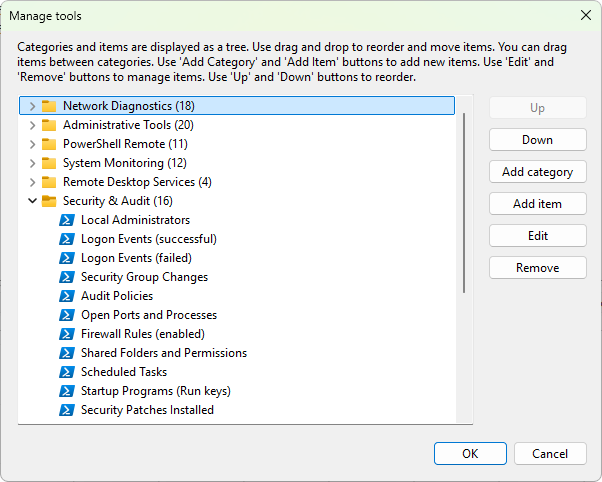
The Tools menu on the main menu bar (and the Tools submenu on the server context menu) is built from a customizable list of tools grouped into categories. Each entry runs an external program with the selected computer or session details substituted into the parameters. Out of the box the list includes a curated set of admin shortcuts; you can edit those, remove them, or add your own, so the categories and counts on your machine may differ from the screenshot and the default list below.
Where the tools come from
The list is stored in the program's SQLite settings as a tree of categories and tools, seeded on first run from a shipped commands.sql file (and re-seeded on Reset to defaults). The Tools menu rebuilds itself when the list changes; no restart is needed.
Opening the manager
Choose Tools > Manage tools from the main menu. The Manage tools dialog opens with a category tree on the left and details on the right.
Editing the list
Buttons on the toolbar:
- Add category - prompts for a name; the new category appears at the bottom.
- Add item - opens the editor for a fresh entry inside the focused category.
- Edit - opens the editor on the selected entry.
- Remove - removes the selected category or tool after confirmation. Removing a category removes every tool inside it.
- Up / Down - move the selected entry up or down to reorder it.
Tools can be reordered within a category with the Up / Down buttons or by drag and drop, and moved between categories by drag and drop.
Tool editor
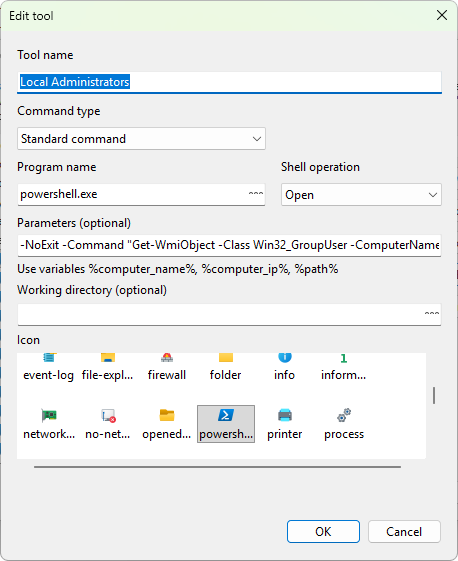
The Create tool / Edit tool dialog has these fields:
- Tool name - what the menu shows.
- Command type - the kind of action the entry runs. Standard external programs use the default type; built-in actions (see below) use their own types and hide the program-name and parameters fields.
- Program name - the executable to run. A ... button next to the field opens a file picker.
- Shell operation - which Windows ShellExecute verb to invoke (
openby default;runastriggers a UAC elevation prompt; other verbs depend on what's registered for the file type). - Parameters (optional) - command-line arguments. Supports variable substitution; see below.
- Working directory (optional) - the directory the process runs in. A ... button opens a folder picker.
- Icon - pick an icon from a built-in collection; the icon is shown next to the menu item.
Variable substitution in parameters
Parameters are substituted just before the process is launched. The placeholders use percent markers and are case-insensitive. When you run a tool from the Tools menu, the program fills them from the selected server or computer:
%computer_name%- the selected computer or server name.%computer_ip%- the selected computer's address, that is, the same name or IP address you entered for the entry.%path%- a UNC path to the computer, in the form\\name.
The editor's hint lists exactly these three. Three further markers are also recognized in the parameter text, %user_name%, %user_password%, and %session_id%, but the Tools menu does not fill them for an external program, so write a tool's parameters around the computer placeholders above. Unknown placeholders are left in place, and empty values render as an empty string.
Built-in actions
Two entries do not run an external process; they invoke an internal dialog. The editor hides the program-name and parameters fields for these:
- Send Message - opens the Send message dialog targeted at the current selection.
- Shutdown/Restart - opens the Reboot / shutdown dialog.
In the menu they look identical to any external tool. Internally they use the %shutdown% and %send_message% markers in the Program name field.
Import, export, reset
The Manage tools dialog's menu has commands to:
- Import tools - read a previously exported file. New entries are added without removing existing ones; categories that already exist are reused.
- Export tools - write every tool and category to a file. The export dialog offers JSON, XML, and plain text formats.
- Reset to defaults - delete everything and re-import the shipped defaults.
Default tools that ship
The seed commands.sql defines 12 categories with 127 entries in total. Most are PowerShell one-liners that target the selected computer through %computer_ip% or %computer_name%. A few launch MMC snap-ins, mstsc.exe, Windows Explorer, or the Sysinternals utilities. Two are the built-in Shutdown and Send Message actions described above.
The sections below list every default tool by name with a one-line description. Each entry can be edited or deleted from Manage tools.
Network Diagnostics
| Tool | What it runs |
|---|---|
| Ping - basic test | Test-Connection with 4 echo requests |
| Ping - continuous | Test-Connection in an infinite loop, one per second |
| Traceroute | Test-NetConnection -TraceRoute showing the hop list |
| Traceroute - detailed | Test-NetConnection -TraceRoute with the full object output |
| Test port - Telnet (23) | Test-NetConnection -Port 23 |
| NetBIOS information (Name) | nbtstat -a <name> |
| NetBIOS information (IP) | nbtstat -A <ip> |
| DNS lookup | Resolve-DnsName for the selected name |
| ARP table (remote) | Get-NetNeighbor filtered to reachable neighbors |
| Test-NetConnection - detailed | Test-NetConnection -InformationLevel Detailed |
| Test port - RDP (3389) | Test-NetConnection -Port 3389 |
| Test port - HTTP (80) | Test-NetConnection -Port 80 |
| Test port - HTTPS (443) | Test-NetConnection -Port 443 |
| Test port - SMB (445) | Test-NetConnection -Port 445 |
| Test port - WinRM (5985) | Test-NetConnection -Port 5985 |
| Test-Connection - extended | Test-Connection -Count 10 -Delay 1 |
| Routing table | Get-NetRoute on the remote session |
| Port scan (common ports) | Loops Test-NetConnection over 21, 22, 23, 25, 53, 80, 135, 139, 443, 445, 3389, 5985 |
Administrative Tools
| Tool | What it runs |
|---|---|
| Explorer - network shares | Windows Explorer on \\<computer_ip> |
| Remote Desktop (RDP) | mstsc /v:<computer_ip> |
| RDP - fullscreen mode | mstsc /v:<computer_ip> /f |
| Shutdown/Restart | Built-in reboot / shutdown dialog |
| Send Message | Built-in send-message dialog |
| Computer Management | compmgmt.msc aimed at the remote computer |
| Services Management | services.msc aimed at the remote computer |
| Event Viewer | eventvwr aimed at the remote computer |
| Local Users and Groups | lusrmgr.msc |
| Shared Folders | fsmgmt.msc |
| Task Scheduler | taskschd.msc |
| WMI Control | wmimgmt.msc |
| Print Management | printmanagement.msc |
| System Information | msinfo32 /computer <name> |
PowerShell Remote
| Tool | What it runs |
|---|---|
| Remote PowerShell Session | Enter-PSSession against the remote machine |
| Running Services | Get-Service filtered to status Running |
| Installed Software | Get-ItemProperty on the Uninstall registry keys (32- and 64-bit) |
| System Uptime | Win32_OperatingSystem.LastBootUpTime minus now |
| Network Adapters | Get-NetAdapter with name, status, MAC, link speed |
| IP Configuration | Get-NetIPAddress |
| Disk Space | Win32_LogicalDisk rendered as Size / Free / Used % per drive |
| Logged On Users | quser /server:<name> |
| Test WinRM Connection | Test-WSMan |
| Kill Process (interactive) | Prompts for a process name, then Stop-Process -Force over Invoke-Command |
| Restart Service (interactive) | Prompts for a service name, then Restart-Service -Force |
System Monitoring
| Tool | What it runs |
|---|---|
| CPU Usage (5 samples) | Get-Counter '\Processor(_Total)\% Processor Time' 5 samples, 2 s apart |
| CPU - all cores | Same counter for every core, 3 samples |
| Memory Usage | Win32_OperatingSystem rendered as Total / Free / Used % |
| Disk I/O | \PhysicalDisk(_Total)\Disk Reads/sec and Writes/sec |
| Network Traffic | \Network Interface(*)\Bytes Total/sec |
| System Errors (last 20) | Get-EventLog -LogName System -EntryType Error -Newest 20 |
| Application Errors (last 20) | Same for the Application log |
| System Warnings (last 20) | Same for System log with EntryType Warning |
| Services Status Count | Get-Service grouped by status |
| Recent Windows Updates | Get-HotFix sorted by install date, top 15 |
| Active TCP Connections | Get-NetTCPConnection -State Established |
| Performance Summary | CPU %, Memory available MB, Disk Time % over 3 samples |
Remote Desktop Services
| Tool | What it runs |
|---|---|
| Active RDP Sessions | qwinsta /server:<name> |
| RDP Sessions (detailed) | Win32_LogonSession filtered to LogonType=10 (RDP) |
| RDP Licenses Status | Win32_TSLicenseKeyPack from root/cimv2/TerminalServices |
| RDP Connection History | TerminalServices LocalSessionManager events 21, 24, 25 (last 20) |
Security & Audit
| Tool | What it runs |
|---|---|
| Local Administrators | Members of the local Administrators group via Win32_GroupUser |
| Logon Events (successful) | Security log event 4624, last 20 |
| Logon Events (failed) | Security log event 4625, last 20 |
| Security Group Changes | Security log events 4728 / 4729 / 4732 / 4733 (group membership) |
| Audit Policies | auditpol /get /category:* over Invoke-Command |
| Open Ports and Processes | Listening TCP ports cross-referenced with owning process |
| Firewall Rules (enabled) | Get-NetFirewallRule filtered to Enabled=True |
| Shared Folders and Permissions | Get-SmbShare + Get-SmbShareAccess per share |
| Scheduled Tasks | Get-ScheduledTask with next-run time, excluding disabled |
| Startup Programs (Run keys) | HKLM and HKCU Run registry hives |
| Security Patches Installed | Get-HotFix filtered by Description like '*Security*' |
| BitLocker Status | Get-BitLockerVolume on each mount point |
| Windows Defender Status | Get-MpComputerStatus |
| Recent Security Events | Get-EventLog -LogName Security -Newest 30 |
| Remote Desktop Users | Members of the local Remote Desktop Users group |
| Firewall Profile Status | Get-NetFirewallProfile for Domain / Private / Public |
System Tools
| Tool | What it runs |
|---|---|
| Operating System Information | Win32_OperatingSystem (Caption, Version, Build, OSArchitecture, Install date, Last boot) |
| BIOS Information | Win32_BIOS full object |
| Processor Information | Win32_Processor with cores, logical processors, clock speed, load |
| Motherboard Information | Win32_BaseBoard |
| Physical Memory (modules) | Win32_PhysicalMemory per slot |
| Video Controllers | Win32_VideoController |
| Network Adapters (detailed) | Win32_NetworkAdapterConfiguration for IP-enabled adapters |
| Printers | Win32_Printer |
| Environment Variables | Get-ChildItem Env: over Invoke-Command |
| Domain Information | Win32_ComputerSystem (Domain, DomainRole, Workgroup) |
| Running Drivers | Win32_SystemDriver filtered to State=Running |
Network Shares
| Tool | What it runs |
|---|---|
| Open C$ (system drive) | Explorer on \\<ip>\c$ |
| Open D$ (drive D) | Explorer on \\<ip>\d$ |
| Open E$ (drive E) | Explorer on \\<ip>\e$ |
| Open ADMIN$ (Windows) | Explorer on \\<ip>\admin$ |
| All Shared Folders | Get-SmbShare with path, description, state |
| Share Permissions | Get-SmbShareAccess per share |
| Open Files on Server | Get-SmbOpenFile |
| SMB Sessions | Get-SmbSession with client name, idle / existence time |
Sysinternals Suite
These entries assume the Sysinternals binaries (psexec.exe, psinfo.exe, etc.) are on the program's PATH. They will not work if Sysinternals is not installed; edit the tool to point at the executable's full path.
| Tool | What it runs |
|---|---|
| PSExec - remote CMD | psexec \\<name> cmd |
| PSExec - remote PowerShell | psexec \\<name> powershell.exe |
| PSExec - interactive session | psexec \\<name> -i cmd |
| PsInfo - system information | psinfo -h -s -d \\<name> |
| PsLoggedOn - logged users | psloggedon \\<name> |
| PsList - process list | pslist \\<name> |
| PsService - service management | psservice \\<name> |
| PsFile - open files | psfile \\<name> |
Advanced Diagnostics
| Tool | What it runs |
|---|---|
| Remote Registry - SOFTWARE | Get-ChildItem HKLM:\SOFTWARE over Invoke-Command |
| Remote Registry - SYSTEM | Same for HKLM:\SYSTEM |
| WMI Query - connection test | Fast Win32_OperatingSystem probe; confirms WMI reachability |
| CIM Session - test | Opens a CimSession, queries Win32_ComputerSystem, closes it |
| Network Routes | Get-NetRoute excluding IPv6 link-local |
| Disk Volumes | Win32_Volume filtered to fixed drives |
| Windows Update Log | Get-WinEvent -LogName Setup last 30 |
| TCP/IP Settings | Get-NetTCPSetting |
| Reboot History | System log events 1074, 6005, 6006, 6008 (shutdown / startup / unexpected) |
Update Management
| Tool | What it runs |
|---|---|
| All Installed Updates | Get-HotFix sorted by install date |
| Updates from Last Month | Same filtered to the last 30 days |
| Critical Updates | Get-HotFix filtered by Description like '*Security*' or '*Critical*' |
| Windows Update Service Status | Get-Service wuauserv |
| Windows Update Settings | Read of HKLM:\SOFTWARE\Policies\Microsoft\Windows\WindowsUpdate |
| Pending Reboot Status | Tests the RebootRequired and RebootPending registry keys |
| WSUS Server (if configured) | Reads WUServer from the policy registry key |
Performance Management
| Tool | What it runs |
|---|---|
| Disk Performance | All \PhysicalDisk(*)\* counters, filtered to averages |
| Network Performance | All \Network Interface(*)\* counters |
| Memory Statistics | All \Memory\* counters |
| Processes - top by CPU | Win32_PerfFormattedData_PerfProc_Process sorted by CPU, top 15 |
| Processes - top by RAM | Get-Process sorted by working set, top 15 |
| Processes - top by disk I/O | \Process(*)\IO Data Bytes/sec sorted, top 10 |
| Processes - top by connections | Get-NetTCPConnection grouped by owning process, top 15 |
| CPU by Core | \Processor(*)\% Processor Time for every core, 5 samples |
| System Bottleneck Analysis | CPU %, Memory Pages/sec, Disk Queue Length, Network Bytes Total/sec |
Requirements
These defaults assume the target computer is reachable over WMI / WinRM and that the connecting account has administrator rights on the target. Specifically:
- WMI namespaces
root\cimv2,root\cimv2\TerminalServices, androot\StandardCimv2(forGet-Net*cmdlets) must be reachable. Open the Windows Management Instrumentation (WMI) firewall group on the target. - WinRM must be enabled for the PowerShell Remote category (
Enable-PSRemoting -Force). - The Sysinternals Suite category needs the binaries on the path or full paths supplied in the Program name field.
- For SMB-based shortcuts (
\\<ip>\c$,Get-SmbShare,Get-SmbOpenFile) the File and Printer Sharing firewall group must be allowed and the account must have administrator rights on the target.
Where a tool fails, the PowerShell window stays open (every default uses -NoExit), so you can read the error text and adjust permissions or firewall rules.