
Failed logons
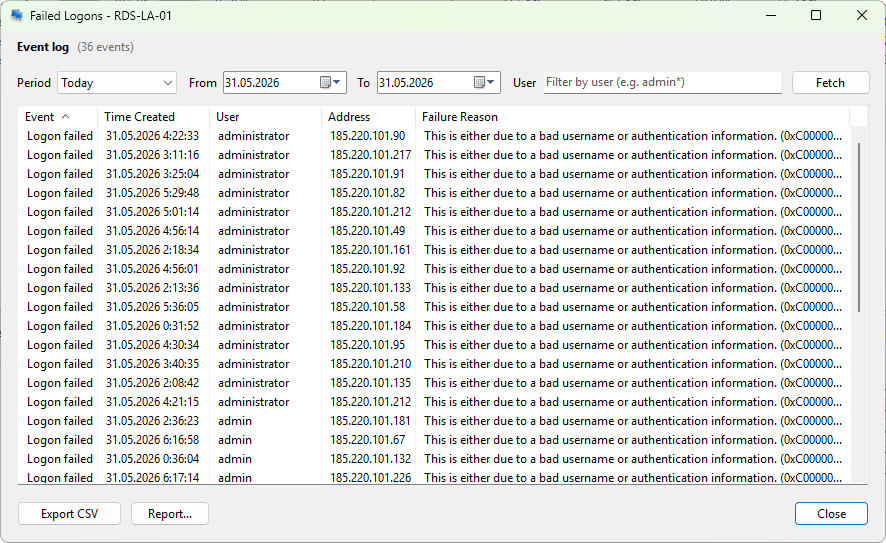
The Failed logons dialog reads the Security event log on a server and lists every event with ID 4625 (an account failed to log on). Use it to spot brute-force attempts, find account-lockout causes, or audit a specific user's failed sign-ins.
How to open it
- Right-click a server on the Servers tab and choose Administration > Failed logons to see every failed logon on the server in the chosen period.
- Right-click a user on the User sessions tab and choose Failed logons to see only that user's failures.
Time range
The same toolbar as Session history: a Period dropdown of presets and two date pickers, then Fetch to reload. The dialog opens with Today selected by default.
Columns
- Event - human-readable event description (Logon failed).
- Time Created - when the event was recorded.
- User - the account that failed to log on.
- Address - the source IP, when present.
- Failure Reason - the failure description derived from the NTSTATUS code and sub-status, followed by the status code in hex. Typical values: Unknown user name or bad password, User logon with account locked, User logon with expired account, User logon outside authorized hours, User logon from unauthorized workstation.
The failure reason combines the Status and SubStatus fields of the 4625 event into a single readable string.
Filter
A User field at the top of the dialog filters by user name (wildcards * and ? supported). Press Enter to apply.
Export
The bottom toolbar:
- Export CSV - the visible rows as comma-separated text.
- Report... - opens a report-export dialog and writes an HTML report with counts per user, per source IP, and per failure reason.
The context menu adds Copy selected, Copy all, and Refresh (F5).
What this is not
The dialog only reads the local Security log of the target server. Network-edge devices, RD Gateway logs, and Active Directory domain-controller logs are not consulted; if a brute-force attempt is being thwarted at the gateway, you will not see it here.