
Bulk operations
The Bulk operations dialog applies one of nine maintenance actions to the computer list. Use it to clean up after a long period of editing, to enforce a naming convention, or to reorganize an unwieldy list.
Opening the dialog
Choose Computers > Bulk operations... from the main menu.
Operation dropdown
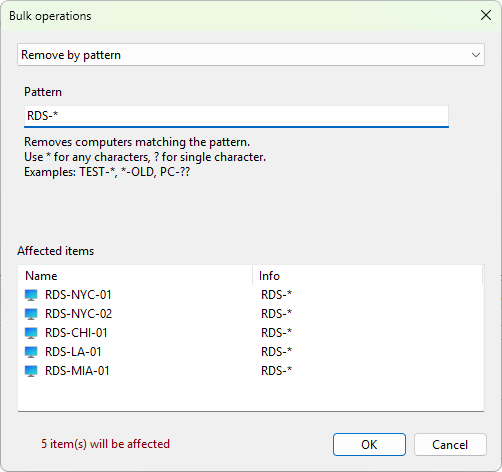
The combo box at the top of the dialog chooses the action. Every operation has its own page of controls below it; the page changes as you switch operations. The list below the controls (Affected items) shows a live preview of what the operation will do, and a status label at the bottom reports how many items will be affected.
Remove inactive computers
Removes all computers that are currently offline (not responding to ping). Nothing to configure. The preview shows the entries that would be removed; review it before you click OK.
Remove duplicate computers
Finds entries with the same name (case-insensitive) and keeps the first occurrence in each duplicate group. Nothing to configure.
Remove empty groups
Deletes all groups that contain no computers or subgroups. Nothing to configure.
Remove by pattern
Removes computers whose name matches a wildcard pattern.
- Pattern - the wildcard expression. Use
*for any sequence of characters and?for a single character. Examples:TEST-*,*-OLD,PC-??.
Flatten group structure
Moves every computer to the root level and deletes all groups. Names are kept as-is.
Normalize computer names
Forces all computer names to a single capitalization style.
- Convert to - UPPERCASE, lowercase, or Title Case.
Rename computers
Inserts, removes, or replaces text in every computer name.
- Operation - Add prefix, Add suffix, Remove prefix, Remove suffix, or Replace text.
- Text - the text to add, the prefix or suffix to remove, or the substring to find when Replace text is selected.
- Replace with - shown only when Replace text is selected. The text that the find string is replaced with.
Group computers
Builds new folders from a property of each computer.
- Group by - Name prefix, IP address / subnet, or Domain name.
- For Name prefix: a Segments spinner (1-10) controls how many leading segments (separated by
-,_, or.) make up the folder name. For example, with 2 segmentsSRV-DB-01is grouped underSRV-DB. - For IP address / subnet: choose a Subnet mask (
/24 (255.255.255.0),/16 (255.255.0.0), or/8 (255.0.0.0)) and a Format (192.168.x.x (Wildcard)or192.168.0.0/16 (CIDR)). Computer names must be IP addresses for this option. - For Domain name: groups by the part of the name after the first dot (for example,
PC1.sales.corpends up undersales.corp). No extra controls.
Format descriptions
Edits the description field of every computer in bulk.
- Operation - Set from template, Clear descriptions, Copy from name, Add prefix, Add suffix, or Replace text.
- Filter - optional. A text or wildcard expression that limits the operation to computers whose name matches. Leave blank to affect every computer.
- Template / Text / Find - the input field. Its label depends on the operation. Replace text also shows a Replace with field.
- Only empty descriptions - tick this box to skip computers that already have a description.
The Set from template mode and the Add prefix / Add suffix modes accept placeholders: {name}, {prefix}, {prefix1}, {prefix2}, {suffix}, {desc}, {upper}, {lower}, {group}, {ip}, {mac}. Using {ip} or {name} in the template triggers a background DNS/network lookup, and a spinner runs at the bottom of the dialog while it works.
Preview pane
The Affected items list below the configuration shows what the operation will do. Columns adapt to the operation: remove operations show a Name column and an Info column; rename, normalize, group, and format operations add a Current and New column. Items being removed appear ghosted.
The status label at the bottom of the dialog reports the count (for example, 42 item(s) will be affected) or a hint if the configuration is incomplete (Enter the pattern). For DNS-based templates the label updates as items resolve.
OK and Cancel
OK confirms the operation, then applies it to the list. The button is disabled while the preview is still being built or when the configuration is invalid. Cancel closes the dialog without changing anything.
All bulk operations write to the computer list immediately and cannot be undone from within the dialog. If you need a way back, save the list first using Importing and exporting the computer list.