
Server administration tools
The dialogs and actions in this chapter let you do administration tasks against a remote Remote Desktop Services host without leaving Terminal Services Manager: open a Remote Desktop session, reboot or shut the host down, toggle RDP on or off, inspect RDS properties and licenses, manage user profiles, browse session history, read failed-logon and RDS activity events, and run your own command-line tools. Each one opens its own dialog from the server context menu or the Servers main menu.
Most of these live under the Administration submenu of the server context menu:
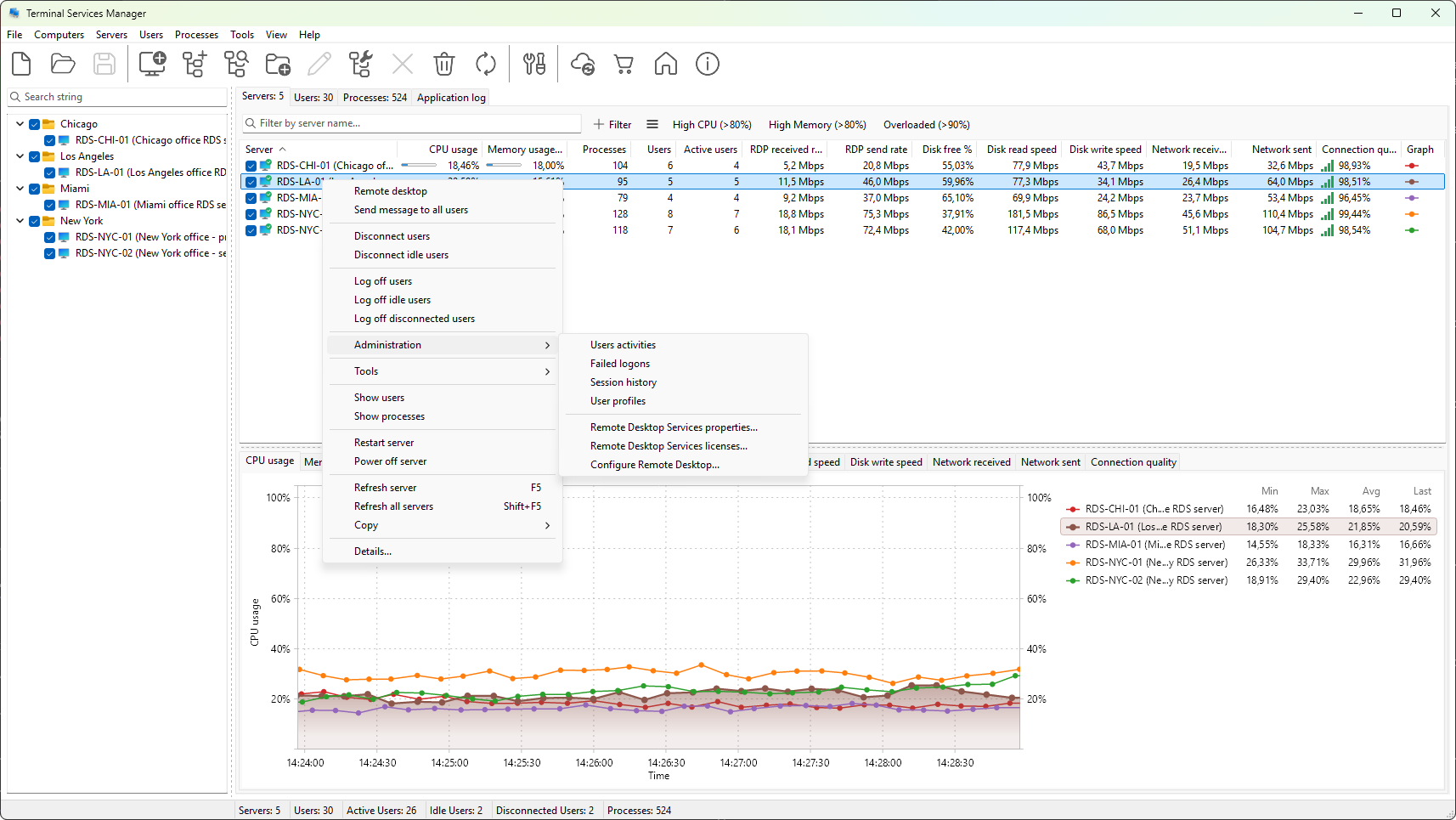
The first group is about reaching and controlling the host itself. Remote desktop opens an interactive mstsc.exe session to the selected server, and the Connect action does the same as a specific user without retyping the password. Restart server and Power off server run a confirmed reboot or shutdown across every selected server. Configure Remote Desktop turns RDP on or off, with options to update the Windows Firewall rules and log off active users first.
The next group reads and edits the server's Remote Desktop Services configuration. The Remote Desktop Services properties dialog shows remote-control policy, security, client redirection, and session timeouts, with the editable pages saved over WMI. The Remote Desktop Services licenses dialog lists the RDS client access licenses (CALs) installed on a licensing server, including how many seats are issued, available, and about to expire.
The remaining tools are for cleanup, auditing, and your own shortcuts. User profiles enumerates and deletes profiles across one or more servers. Session history, Failed logons, and Users activities reconstruct logon, logoff, and failed-sign-in events from the Windows event logs, each with its own export and report options. Custom command-line tools runs external programs and PowerShell one-liners against the selected computer or session, and the Details dialog shows every tracked metric for one server, session, or process with a chart for the focused value.