
Filter overview
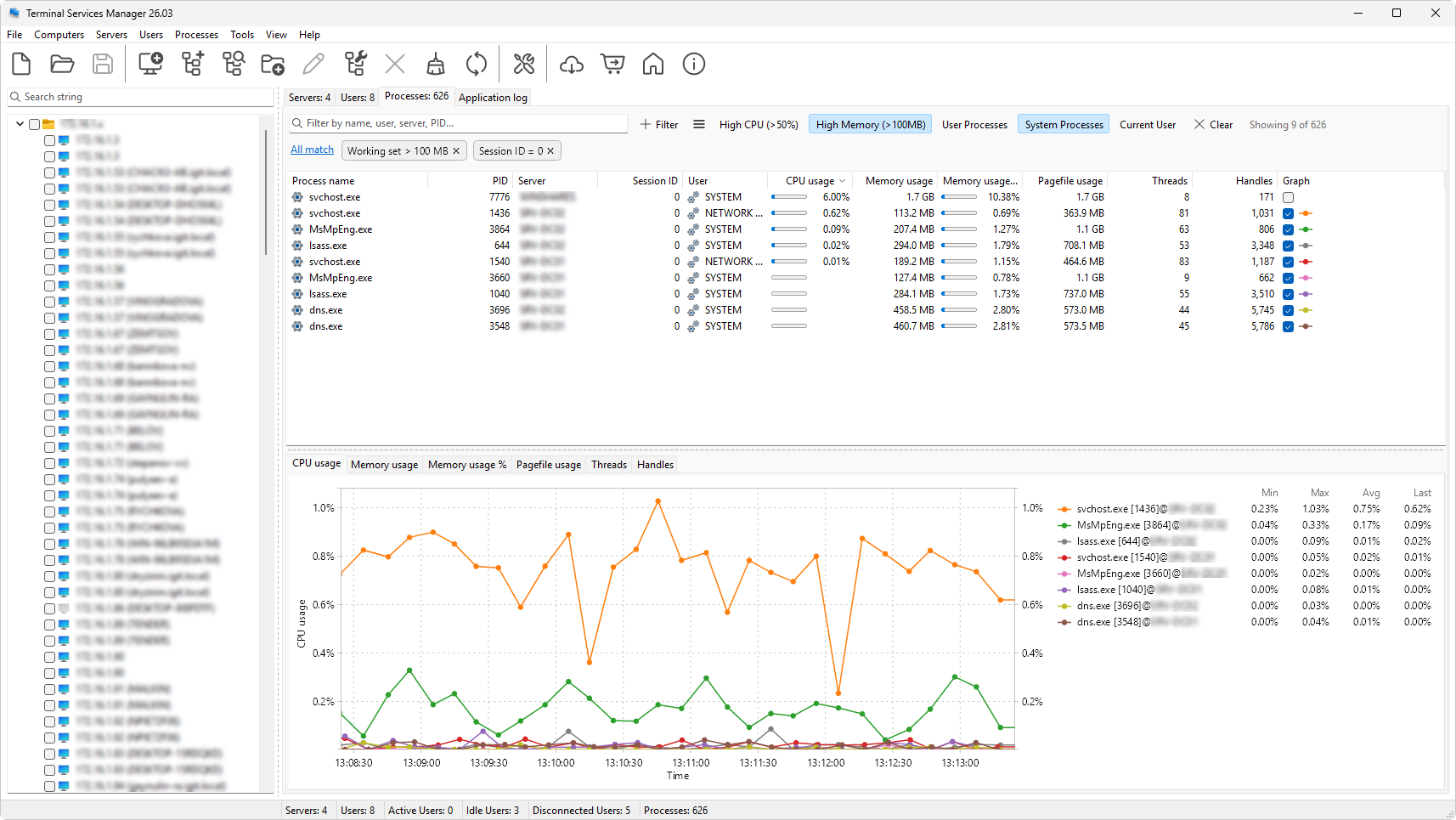
The filter strip sits between the tab caption and the data tree. It has the same shape on every tab. From left to right:
- A quick search field for substring matches.
- A Filter button that opens the filter builder.
- A row of preset buttons for one-click filters - the presets that have the Show as button flag.
- A presets menu button for everything else: the rest of the presets, Custom filter, Manage presets, and an Advanced submenu with import, export, and reset to defaults.
- Active conditions appear below as chips, with a single All match / Any match label shown once when two or more chips are present.
- A clear filter button on the right edge removes everything.
The status line on the right of the tab caption shows how many rows are visible out of how many total, so you can see at a glance how much your filter has narrowed the list.
How conditions combine
Every active condition (whether typed into the builder, restored from a preset, or set by clicking a chip) joins the others using a single logical operator. The default is All match; click the All match / Any match label on the chip strip to flip the whole filter. There is no mixed AND / OR in one filter; switch to Any match if you need any of several conditions to match.
The quick search is always combined with the conditions using AND: a row must match the quick search AND satisfy the filter condition tree.
Three tabs, three field lists
Each tab has its own set of fields:
- Servers: 27 fields covering CPU, memory, sessions, RDP traffic, disk, network, and connection quality.
- User sessions: 32 fields covering identity, session state, CPU and memory, idle and connection timing, RDP traffic, and per-session connection quality.
- Processes: 15 fields covering identity, CPU, memory, page file, threads, and handles.
See Filter fields reference for the full list per tab.
What survives a restart
Active conditions, the quick-search text, and which presets are toggled on are saved with the program's settings and restored on next launch. Saved presets and the order they appear in are also persisted (see Saved presets).