
Terminating a process
Terminate stops the process immediately, without giving it a chance to save state or warn its user. Use it when a process is consuming runaway resources or has hung.
How to do it
Select one or more processes on the Processes tab, then either:
- Right-click and choose Terminate process, or
- Choose Processes > Terminate process from the main menu.
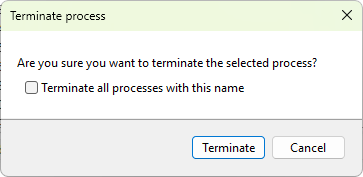
A confirmation dialog appears. Click Terminate to proceed. The dialog also has a Terminate all processes with this name checkbox (worded in the plural when several processes are selected); tick it to terminate every process that shares the same name, not just the ones you selected.
What happens on the server
The Windows API call WTSTerminateProcess(handle, pid, 0) runs against each selected process on its host server. Buffers are not flushed, file handles are closed by the OS without giving the process a chance to write final data, and no logoff prompt appears for the user whose session the process was in.
A success log entry is written for each terminated process; failures are logged with the Win32 error message. Check the Application log tab if a termination did not work as expected.
Common reasons a termination fails
- Access denied - the current connection credentials do not have the right to terminate that process on that server. System and other elevated processes always require admin privileges on the target.
- The process has already exited between the time you selected it and the time the action ran. The row disappears on the next refresh.
Multi-server selection
Selecting processes across several servers is allowed. The confirmation dialog applies to the entire selection; each process is terminated against its own server.
See also
- Process context menu for other actions that operate on the session that owns the process