
User profiles
The User profiles dialog enumerates the user profiles present on one or more servers and lets you delete the ones you no longer need. Use it to clean up after staff turnover, recover space taken by abandoned profiles, or audit who has logged on to a server.
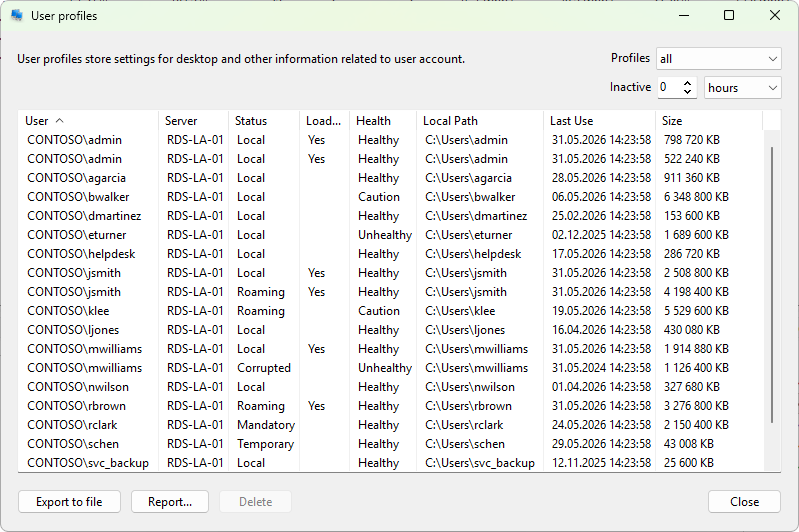
How to open it
Right-click one or more servers on the Servers tab and choose Administration > User profiles. The dialog queries every selected server in parallel.
Columns
- User - the account that owns the profile.
- Server - the host the profile lives on.
- Status - Local, Roaming, Mandatory, Temporary, or Corrupted.
- Loaded - Yes if the profile is currently in use by a logged-on user; profiles in this state can't be deleted.
- Health - profile health status as reported by Windows. Hidden by default; turn it on from the header context menu.
- Local Path - the on-disk path (typically
C:\Users\<name>). - Last Use - the time the profile was last loaded.
- Size - disk space the profile occupies.
Filtering
The filter panel at the top right has two controls:
- Profiles - a dropdown that limits the list to one profile type at a time: all (default), local, temporary, roaming, mandatory, or corrupted.
- Inactive - a number paired with a unit dropdown (hours, days, weeks, months [default], years). Profiles used more recently than this threshold are hidden. Set the number to zero to disable the filter.
Actions
The bottom toolbar:
- Export to file (Ctrl+E) - writes the visible list to a file.
- Report... - opens a report-export dialog and writes an HTML report.
- Delete (Del) - removes the selected profiles after a confirmation dialog. Loaded profiles and special system or service profiles are skipped; for a loaded profile the user has to log off first. Mandatory profiles can be deleted; the central template is not touched.
- Close - dismiss the dialog.
The context menu adds Open (Ctrl+O) to launch the profile path in Windows Explorer, Refresh (F5) to re-query the selected servers, Select all (Ctrl+A), and the standard copy actions.
What it does not do
The dialog does not migrate profiles, archive them, or reset their Health status. For those operations use the User Profiles Control Panel applet on the target server.