
Exporting user data
You can copy session data to the clipboard or export it as a file.
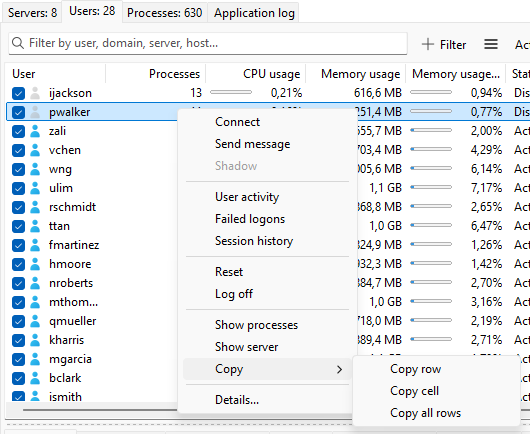
Copying to the clipboard
The Copy submenu of the User context menu has three commands:
- Copy row - the currently focused row, all visible columns, as tab-separated text.
- Copy cell - just the cell under the mouse pointer.
- Copy all rows - every visible row plus a header row.
Hidden columns are not included.
Exporting to a file
Choose Users > Export users to CSV from the main menu. A save-file dialog opens with a default name based on users. CSV is the only file format the export produces; the dialog's extension filter is .csv.
The file is a snapshot of the screen: the visible columns in their current order, sorted as the screen is sorted. Hidden columns are not in the file. For other formats, open the CSV in Excel, LibreOffice, or your editor of choice and save from there.
Was this page helpful?
Thanks for your feedback.