
Shadowing a user
Shadow opens a remote-control window on the user's session. You see what they see; depending on the options, you can also share their keyboard and mouse. The connection runs over RDP and uses the standard Microsoft mstsc.exe client.
How to do it
Select one session on the User sessions tab, then:
- Right-click and choose Shadow, or
- Choose Users > Shadow from the main menu.
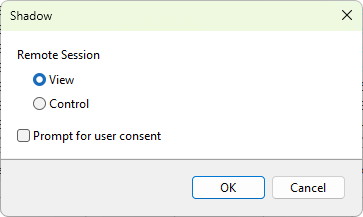
The Shadow dialog opens.
Shadow options
- View - watch the session without taking input. Sometimes labeled view-only.
- Control - share keyboard and mouse with the user.
- Prompt for user consent - when ticked, the user sees a confirmation prompt and the shadow only starts after they accept. When cleared, the shadow starts without prompting. Whether unprompted shadowing is permitted depends on the server's group policy and the user's permissions; see the RDS properties dialog and the local Set rules for remote control of Remote Desktop Services user sessions policy.
Whether the shadow window spans multiple monitors is not set here; it follows the program's Connect with /multimon option setting on the Terminal Services preferences page.
Click OK to start the shadow. Terminal Services Manager launches mstsc.exe with the appropriate /shadow, /control, /noConsentPrompt, and (when that option is enabled) /multimon flags. Close the mstsc.exe window to end the shadow.
Requirements
- The account used to connect must be an administrator on the target server (default policy) or must be listed in the Remote control permission on the RDS session host configuration.
- The server must be Windows Server 2012 R2 or later. Earlier versions used a different shadow mechanism with no view/control distinction.
- The client machine must have
mstsc.exewith shadow support (Windows 8.1 and later).
When shadow fails
- Access denied - the connecting account does not have permission. Add it under Remote control in the session host configuration, or add it to the local Administrators group.
- The session is not in a connectable state - the user is logging off, has been reset, or the session is still initializing. Try again in a few seconds.
- The user declined the prompt - they clicked No on the consent dialog. Talk to them, then retry.
Was this page helpful?
Thanks for your feedback.