
Auditing sessions
Live tabs tell you what is happening now. These four tools answer what happened: who logged on, who failed to, what each session did, and what profiles are left behind. Each one can be run from a server on the Servers tab or scoped to a single user from the User sessions tab, and each exports to a file for reporting.
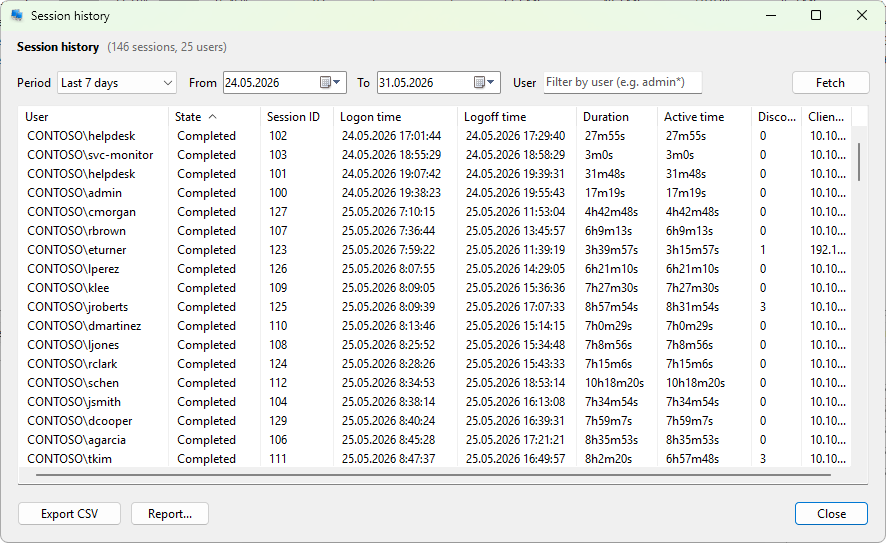
Session history
Choose Servers > Administration > Session history to see logon and logoff events over a period you set with the From and To dates. For each session you get the user, state, logon and logoff times, duration, active time, the number of disconnects, and the client address. Filter by user name with * and ? wildcards, then click Export CSV for a record.
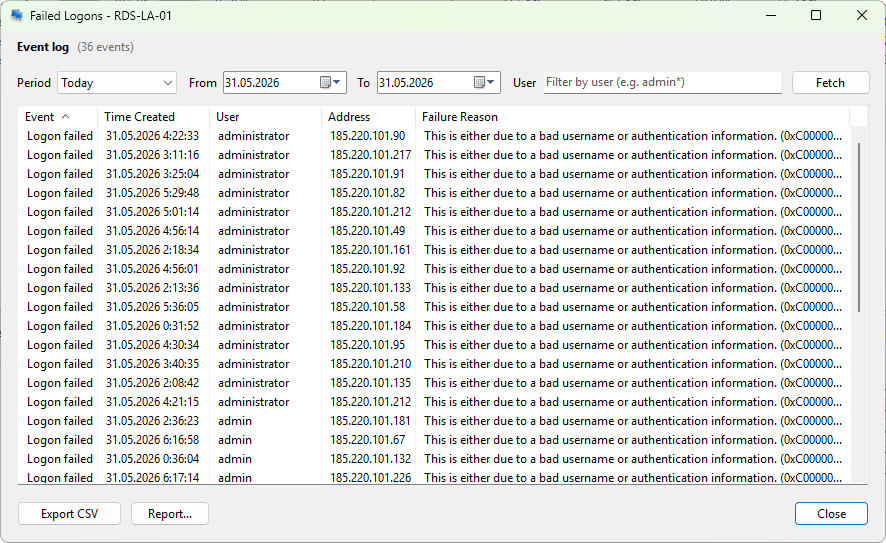
Failed logons
Choose Servers > Administration > Failed logons to review sign-in attempts that did not succeed. Each row gives the time, the user name tried, the source address, and a plain-language failure reason such as a bad password, a locked account, or an attempt outside permitted hours. This is the first place to look when you suspect a brute-force attempt or a misconfigured account.
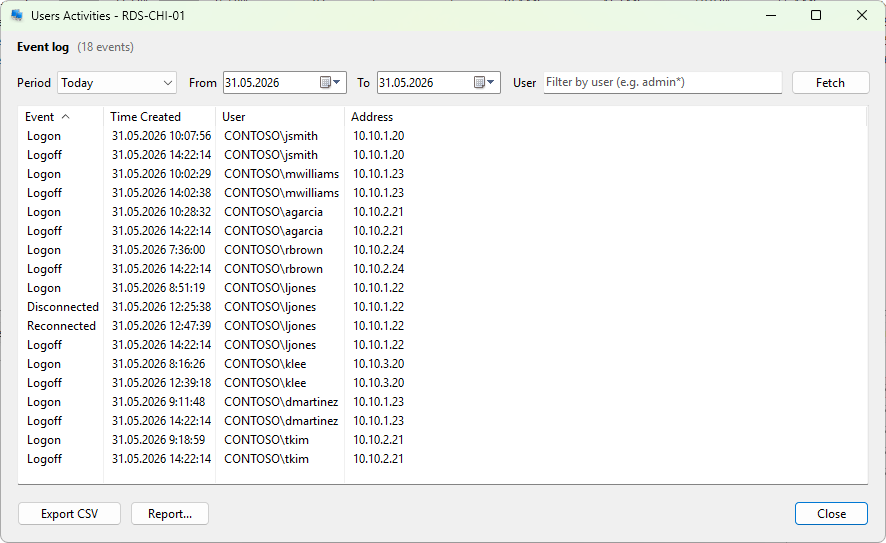
User activity
Choose Servers > Administration > Users activities to read the host's session log: logon, logoff, disconnect, and reconnect events with the time, user, and client address. It draws on the Windows Remote Desktop Services operational log, so it reflects what the server itself recorded.
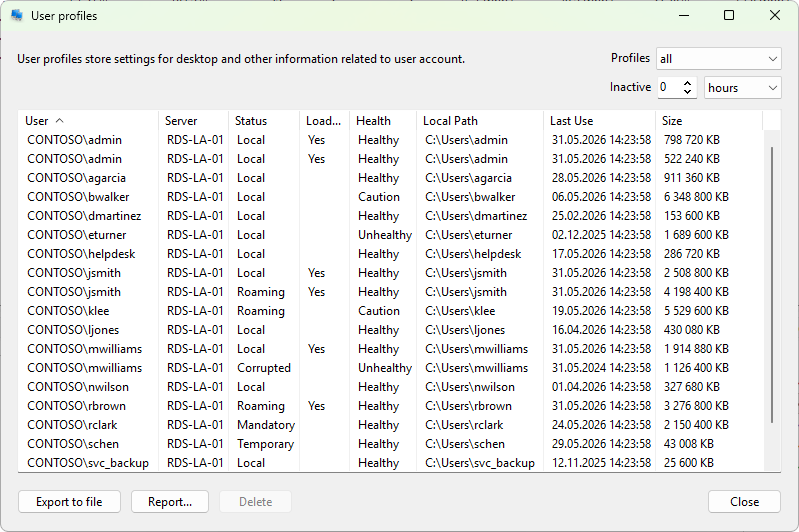
User profiles
Choose Servers > Administration > User profiles to list the profiles stored on a host, with their type (local, roaming, mandatory, temporary, or corrupted), size, and last use. Filter to inactive profiles older than a threshold you set, then select and Delete the ones you no longer need to reclaim disk space. You can run this across several servers at once.
For the full reference, see session history, failed logons, users activities, and user profiles.
To extend the menu with your own utilities, see custom command-line tools.