
Power and Remote Desktop
These are the actions that get you onto a server or change its power and connectivity state. Each one is on the Servers menu or the server's right-click menu, and each accepts more than one server at a time.
Connect over Remote Desktop
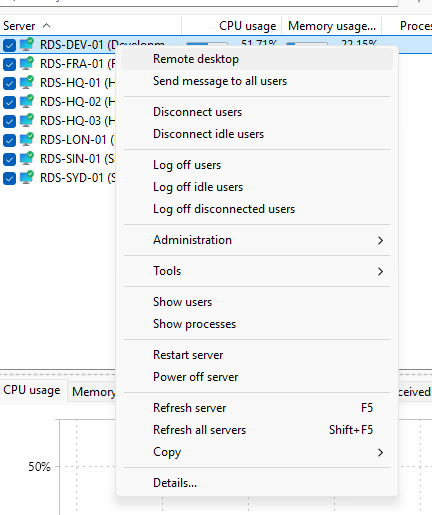
When you need a full desktop on a host, select it and choose Servers > Remote desktop. Terminal Services Manager opens a standard Remote Desktop connection to that server, so you do not have to keep separate shortcuts for each one.
Restart or shut down
Select one or more servers and choose Servers > Restart server or Servers > Power off server. A confirmation prompt appears; click Restart or Power off to go ahead, or Cancel to stop. When you select more than one server, the prompt tells you how many.
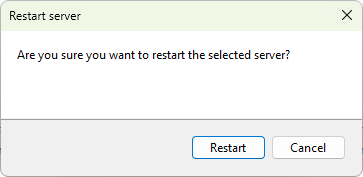
Because you can select several servers first, a maintenance restart across a group is one action rather than one per host. There is no message field on the prompt, so if you need to warn users, send them a message before you restart.
Enable or disable Remote Desktop
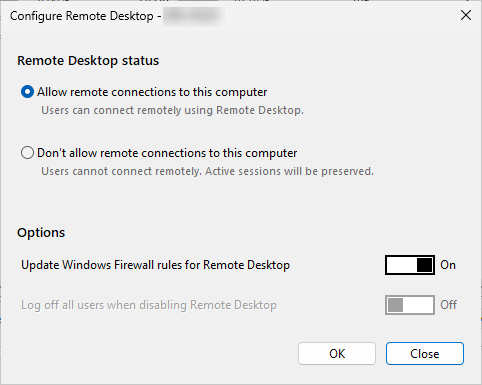
To change whether a host accepts Remote Desktop connections at all, choose Servers > Administration > Configure Remote Desktop.... The Configure Remote Desktop dialog lets you Allow remote connections to this computer or Don't allow remote connections to this computer, update the Windows Firewall rules to match, and optionally log off all users when you turn Remote Desktop off.
The handbook covers these in connecting via Remote Desktop, rebooting and shutting down, and enabling or disabling Remote Desktop.
Next, review how each host is configured with the RDS configuration tools.