
Custom command-line tools
No tool ships with every utility an administrator uses. Terminal Services Manager lets you add your own to the Tools menu, so the scripts and executables you already rely on run against whatever server or session you have selected.
Add a tool
Choose Tools > Manage tools to open the tool manager, then Add item to create one. In the tool editor you give it a name, point Program name at the executable or script, and set the Parameters it runs with.
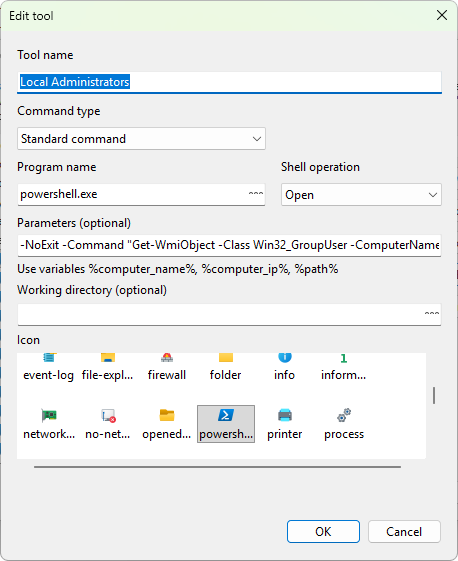
The power is in the parameters. Variables are filled in from the selected server or computer when the tool runs, so one entry works against whichever host you have selected. The editor's hint lists the variables you can use:
| Variable | Replaced with |
|---|---|
%computer_name% |
the selected server or computer name |
%computer_ip% |
the selected computer's address |
%path% |
a UNC path to the computer, in the form \\name |
For example, a tool that runs mstsc.exe /v:%computer_name% opens a remote desktop to whatever server is selected, and a PowerShell script that takes %computer_name% as an argument runs against the host you are looking at. Group related tools under categories with Add category, and reorder them with Up and Down. You can export your tools to share the set with colleagues.
Read every property with entity details
To see everything Terminal Services Manager knows about a server, session, or process, double-click the row, or right-click it and choose Details.... The entity details window lists every property grouped by category, with the current, minimum, average, and maximum value for each metric, and a chart of the one you select over time.
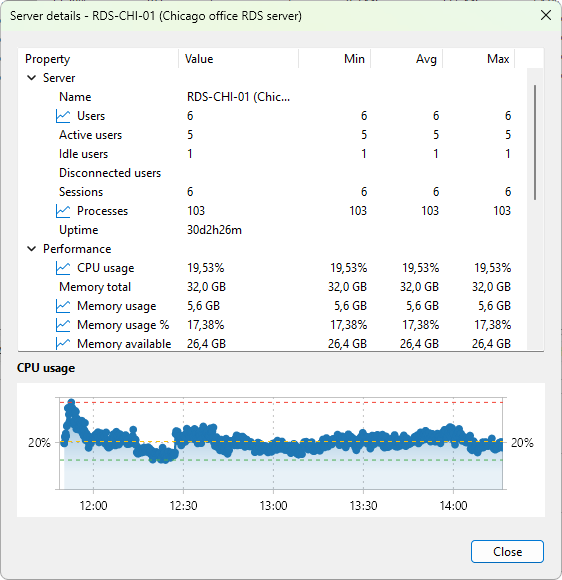
This is the tool for a deep look at a single item: the full performance picture for a server that is misbehaving, or every attribute of a process you are about to end.
See custom command-line tools and entity details in the handbook for the complete reference.